Pin your 3-5 most commonly used Chrome tabs to streamline your workspace. Right-click a tab and select Pin to keep your productivity tools like Gmail, Google Drive, and Google Calendar readily accessible. This tip will improve your effeciency. Watch this video for more details.
Use this NPAS template, or share it with your team, to plan lessons and stay organized. Each tab on the bottom of the Google Sheet provides the dates for the 26-27 school year.
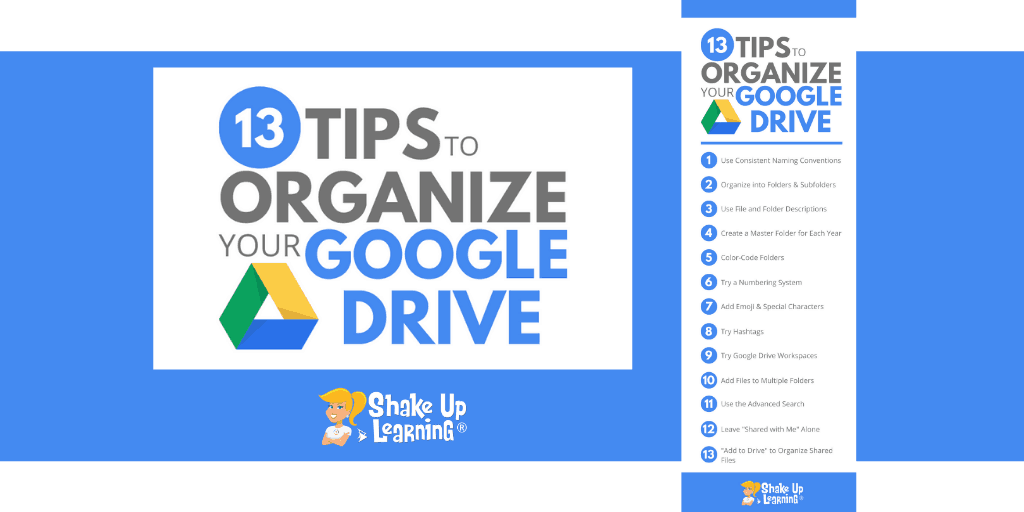
A tidy Google Drive saves valuable time. This Shake Up Learning guide offers thirteen practical strategies to help you regain control of your digital files. Key tips include using consistent naming conventions, color-coding folders for visual cues, and starring essential documents. The article also demonstrates how to use search chips and manage the Shared with Me section for a more efficient workflow. Implementing these simple habits will streamline your daily tasks. Read the full list of tips and view screenshots on the Shake Up Learning blog.
Streamline your next PrintNet (CEC Copy Center) order by merging your files. Instead of submitting separate print jobs for each document, upload multiple files in one job if they have the same paper and finishing needs.
You can choose to have the files as one collated packet or non-collated single-sheet stacks of handouts. This saves time by reducing the number of jobs to submit and ensures your materials are delivered as intended. For detailed instructions, review the PrintNet TIP Sheet.
Missing your dual-monitor setup when working on your laptop away from your desk? Chrome's new Split View feature allows you to view two tabs side-by-side in one window. Give it a try today!
The Staff Resources page is being redesigned with updated buttons and a new Systems Status Dashboard to enhance communication. The status icon provides instant feedback: a green light indicates all systems are operational, while a red light signals a reported outage. Clicking the icon will direct you to the Systems Status Dashboard for additional details.
Maintaining the longevity and professional appearance of our district-issued laptops is important, which is why we kindly ask staff to avoid placing stickers on their devices. This policy helps us model the same expectations we have for our students and their Chromebooks. Laptop components can get warm, causing sticker adhesive to melt, fuse, and leave behind a tough residue that is difficult for our technicians to remove when the devices are later repurposed for substitutes, loaners, or lease returns. If you wish to personalize your laptop, consider using vinyl adhesive skins or wraps, which are designed for easy removal without sticky damage.
Remember to check all the options on the new PrintNet Copy Center print job form before you submit. This will ensure you get your copies exactly the way you want them. Please refer to the PrintNet TIP Sheet or video tutorial for step-by-step instructions.
Last month I gave an after-school PD session titled The Google Power Hour! where I shared the benefits of using keyboard shortcuts. Mastering keyboard shortcuts can dramatically improve your efficiency when working with technology. Rather than hunting through menus with mouse clicks, simple key combinations like Ctrl+C (copy), Ctrl+V (paste), and Ctrl+Z (undo) can save precious minutes throughout your day. The video below demonstrates how these shortcuts work across most applications and emphasizes that learning just a handful of these commands can transform your digital workflow. Consider posting this keyboard shortcut TIP Sheet near your computer and challenging yourself to learn one new shortcut weekly. Your future self will thank you as these small efficiency gains compound into significant time savings over the school year.
I recently gave an after-school PD session titled The Google Power Hour! where I shared the benefits of using the Google Tasks add-on with Gmail. We explored how easily you can convert emails into a to-do list. When you add a due date, Tasks seamlessly sync each task with your Google Calendar for better time management. Imagine clicking directly from a task to the original email, eliminating endless inbox searches! Plus, this functionality extends to your smartphone, ensuring you stay productive on the go. Watch the video below for a comprehensive overview of these benefits, demonstrating how to move beyond simple labels and truly streamline your workflow. Reach out if you have any questions.
This is the easiest way to create student groups! Grouperis a user-friendly tool that simplifies student grouping. Teachers can easily create groups of any size with a single click, randomize groups, or group by attributes like proficiency. This tool saves time by allowing users to save group configurations for future use and import rosters via Clever (recommended). Review these videos for demonstrations and quick tips:
Over the past three months, we've completed three (3) after-school PD sessions exploring the basics of AI. Although AI in education is relatively new, one important concept is clear; if you want helpful results from a chatbot, you need a well-written prompt. For example, AI for Education provides this graphic to demonstrate the spectrum of a more effective prompt. Visit their Prompt Library for more examples.
Google Drive's new homepage aims to help you find files faster, but the feature is currently rolling out with mixed reviews. If the home menu icon appears in your Drive and you prefer the "My Drive" layout, don't worry, you can change your default settings:
Is Google Drive starting with the Home page by default?
In the upper-right corner, click the Gear icon
Click the Settings option
Under the Start Page section, click the My Drive option
Click the back arrow next to Settings
Google Drive will now load the My Drive page by default
Too many open browser tabs can slow down your computer by hogging memory. Declutter with Snoozz - an extension that lets you "snooze" tabs until needed. Simply click the Snoozz icon on Friday; the tab will reopen automatically on Monday morning (or any other day/time you choose). Take control of tab overload. Snoozz boosts speed by clearing memory and helps you focus on the tabs you need.
Google Docs is rolling out a new feature which will allow users to view non-printing characters. A teacher may need to view non-printing characters on a Google Doc in order to troubleshoot formatting issues or to understand the structure of the document. For example, non-printing characters such as spaces, tabs, and line breaks can affect the alignment of text or the spacing between paragraphs. Most users should see this feature available by the end of the month (View > Show non-printing characters).
Google Forms is a great way to create and distribute surveys and quizzes. The digital tool provides quick results for teachers and immediate feedback for students. Occasionally, you need a paper copy of the Google Form. There is a built-in print feature, but it requires a lot of paper and does not allow you to edit or format the content.
Form Printer is a Google Forms add-on that "prints" your survey / quiz to a Google Doc. From there, you can easily modify the text and print when you are satisfied with the formatting. This option works great for make-up or modified assessments. Click the link to install the add-on. When you are finished entering your Google Forms questions, click the puzzle piece icon to run Form Printer.
One of the most anticipated features is finally rolling out to Google Classroom. Teachers can now schedule assignment posts to multiple classes. This feature should be available to all ISD721 accounts by April 1st... no joke. 😉
Page breaks / margins in a document editor were designed for printing... But how often do you actually print a Google Doc on a piece of paper? Our digital learning environment allows us to view files on staff and student devices or display them on classroom projectors. Google Docs recently added a new feature to the File > Page setup menu called Pageless. If the document will primarily be viewed online, fill your screen with more content by removing the page breaks / margins using the Pageless setting.